A home recording program should help you finish the video, lesson, podcast, or voice-over you already plan to publish. For most beginners, the bigger problem is not missing advanced features; it is slow editing, uneven levels, or uncertainty after pressing record.
The right tool depends on the work you make, the device you own, and how much time you can spend learning.
This guide compares sensible options for creators who need a repeatable process, not a crowded dashboard full of settings they may never use.
Choose Software Around the Recording You Actually Make
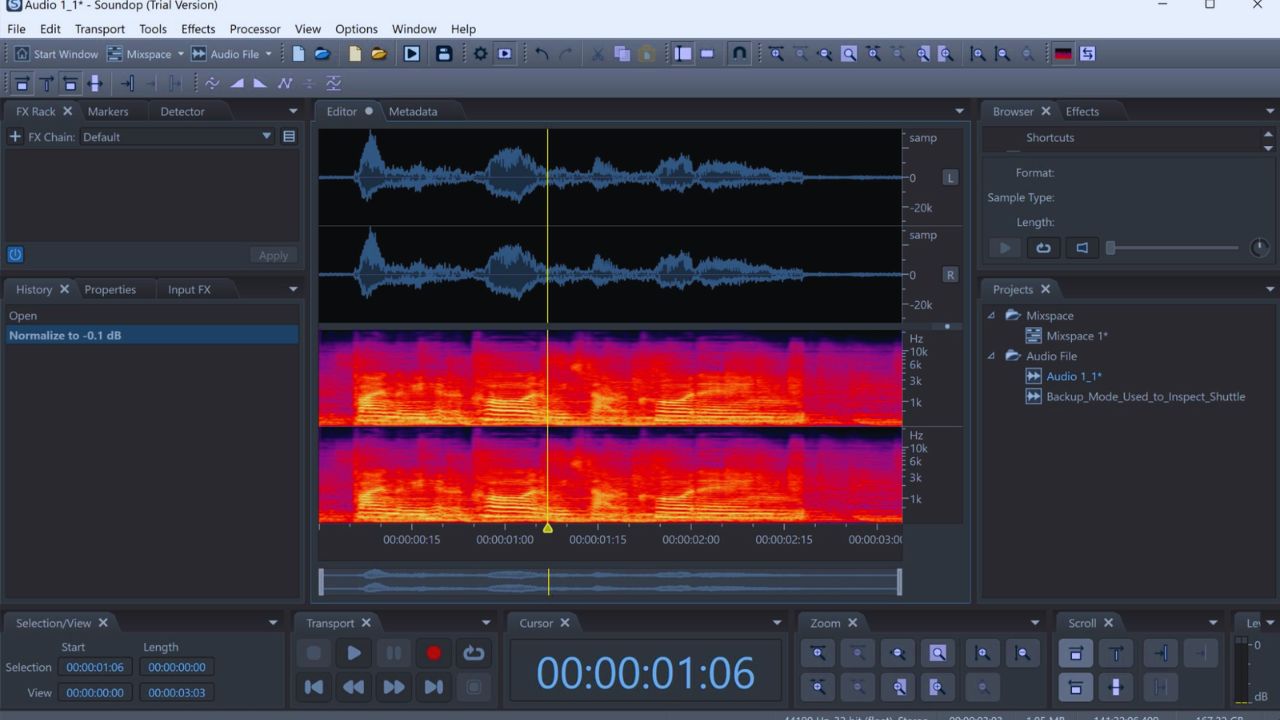
Think about the hour after you stop recording. You may only need to trim a mistake, make speech easier to hear, and send the file to a video editor.
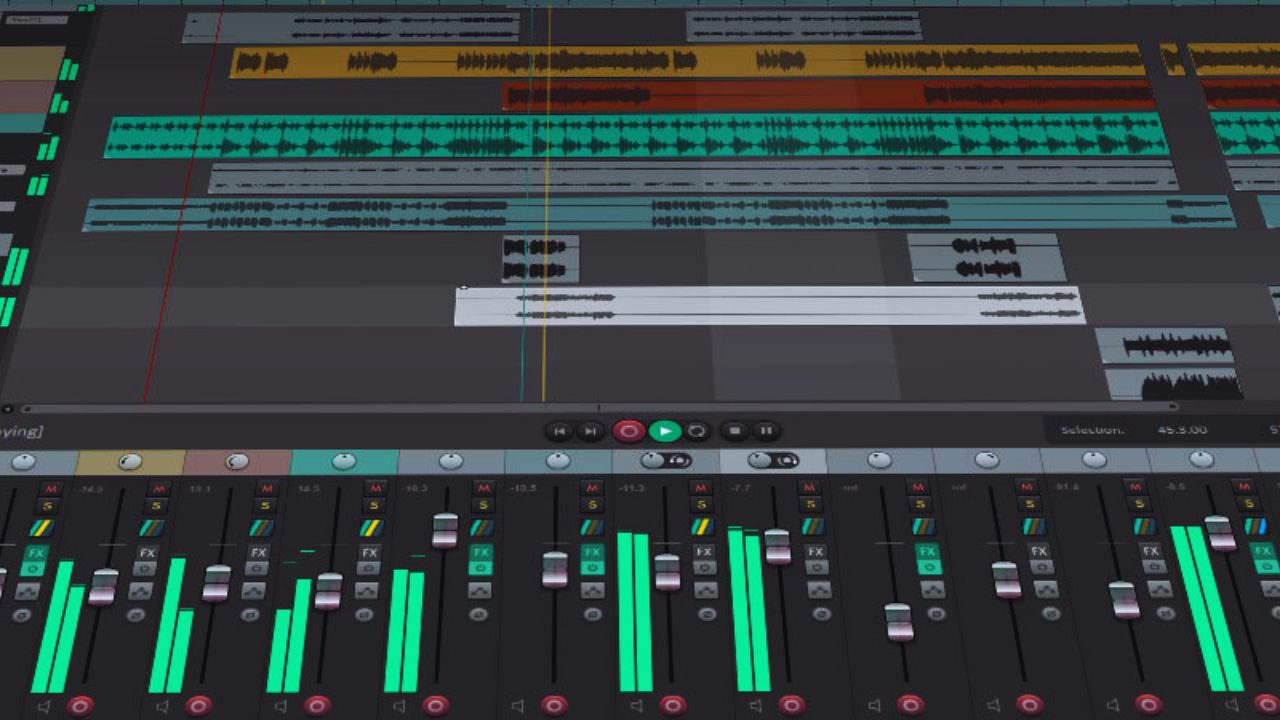
Or you may need to manage several speakers, music, and regular episodes. Those are different jobs, so they should not force you into the same editing workflow or software cost.
Solo Voice and Video Projects Need Direct Tools
For webcam lessons, gaming commentary, YouTube narration, and simple voice overs, the essential work is usually straightforward.
You need to remove a false start, smooth a few volume changes, and export a file that matches your video editor.
A simple program that shows the waveform clearly may be more useful than a full studio workstation. Look for easy cuts, understandable level controls, and a way to listen through headphones before creating the final export.
Interviews Need Tracks You Can Keep Organized
A remote conversation, a shared show, or a video with music underneath needs a more structured workspace.
You may want to silence a cough on one track, lift a quiet guest, or replace an introduction without damaging the rest of the conversation.
That is where multitrack software earns its place. Prioritize clear track labels, simple volume control, and folders that do not leave important recordings scattered across your computer.
Free Editors Are Often Enough for a First Workflow
Free software is not a lesser choice when it fits the job. It can be the sensible place to learn editing without adding a monthly bill to a modest home setup.
The important test is whether you can complete your usual tasks without turning each recording into a technical puzzle.
Audacity Rewards a Simple, Direct Editing Approach
Audacity is useful for creators who want to trim speech, adjust levels, remove a few pauses, and export common audio files.
The interface can feel manual at first, but it also makes basic actions visible instead of hiding them behind automated buttons.
That suits someone willing to learn a few repeatable steps. For voice overs, short podcasts, and simple interviews, it can handle basic cleanup without adding unnecessary subscription costs.
GarageBand Makes Sense for Many Mac Users
GarageBand can be a comfortable place to begin if you use a Mac and want to record voice, place music under an introduction, or connect a USB microphone.
Its visual layout helps new users move clips and test basic effects without confronting a dense professional interface.
It can also be useful when a project mixes voice with simple music. That combination gives it value for home lessons and creative side projects.
Pay for Software Only When It Removes a Real Bottleneck
Paid software can be worthwhile when it consistently saves time or supports a task your free editor cannot handle well.
It should not be an automatic purchase after buying a microphone. Look at the part of the process that slows you down most: transcribing interviews, organizing sessions, collaborating, or polishing a complicated mix.
The useful question is whether the tool changes your weekly workload, not whether it has the longest feature list.
Also Read: Continuous Lighting vs Natural Light at Home
Descript Fits Creators Who Edit by Reading
For spoken interviews, courses, talking head videos, and podcast episodes, transcript based editing can be easier than working only with waveforms.
You can read the conversation, remove repeated phrases, and locate a useful quote without scrubbing through every minute of audio.
That can be helpful for weekly creators who make clips from longer recordings. It is less necessary for someone who only edits a short narration now and then.
REAPER Offers Control for a More Demanding Setup
REAPER may suit a creator who wants one flexible place for narration, podcasts, music, or detailed audio work.
It can run well on modest computers and allows the workspace to change as your process becomes more demanding.
The trade off is a steeper beginning, because it gives you many choices rather than pointing you toward one path. For someone willing to learn gradually, that freedom can become a real workflow advantage.
Check the Everyday Details Before You Commit
The best software for audio recording and editing is usually the program that works with your operating system, microphone, available storage, and video process.
Before deciding, make one ordinary project from recording through export. During that test, verify these practical details that protect a smooth workflow:
- Input device: Confirm the correct microphone or interface is selected.
- Monitoring: Listen for delay, clipping, and background noise.
- Export: Save a file your video editor or hosting platform accepts.
These points may sound basic, but they prevent problems that only appear after a full recording session.
Keep a template project with the preferred input, a safe starting level, and a simple file naming pattern.
You will spend less time rebuilding the same setup, especially when recording between other commitments. A starting template turns routine work into a more reliable process.
Some creators also add specialist tools later. Auphonic can be useful for leveling spoken audio after recording, while Adobe Audition or Pro Tools may suit people who already work within those broader professional workflows.
Neither is required for a beginner’s first clear file. Check current plans and features on the official site, then choose only what solves a recurring editing problem or a genuine collaboration need.
Build an Editing Habit Before Chasing More Features
Good home recording software should take you from a clean capture to a shareable file without making every session feel mysterious.
Begin with a free editor or a trial, learn how to cut mistakes, set safe levels, and export one dependable format.
Once you can name a limitation—such as slow transcript work, difficult multitrack sessions, or frequent collaboration—you will know what a paid program must solve.