A microphone can sound “fine” in the room and still record audio that is noisy, thin, echoey, or hard to understand.
If you create home videos, tutorials, streams, podcasts, or voiceovers, a quick mic test before you hit record saves time and prevents re-shoots.
Below is a practical, repeatable way to test microphone quality using simple tools and everyday creator workflows.
What “microphone quality” means for everyday creators
Your voice is clear, the background is quiet, the tone is natural, the volume is stable, and the audio has no technical issues.
Clarity is the first target. If viewers cannot understand words, nothing else matters. Noise is the second target because normal editing steps can amplify it.
Tone matters because it affects trust and comfort. Harsh audio is tiring. Muffled audio feels low-effort even when the content is strong.
Consistency matters because you will move slightly. A mic that changes tone or volume with small movement is harder to use.
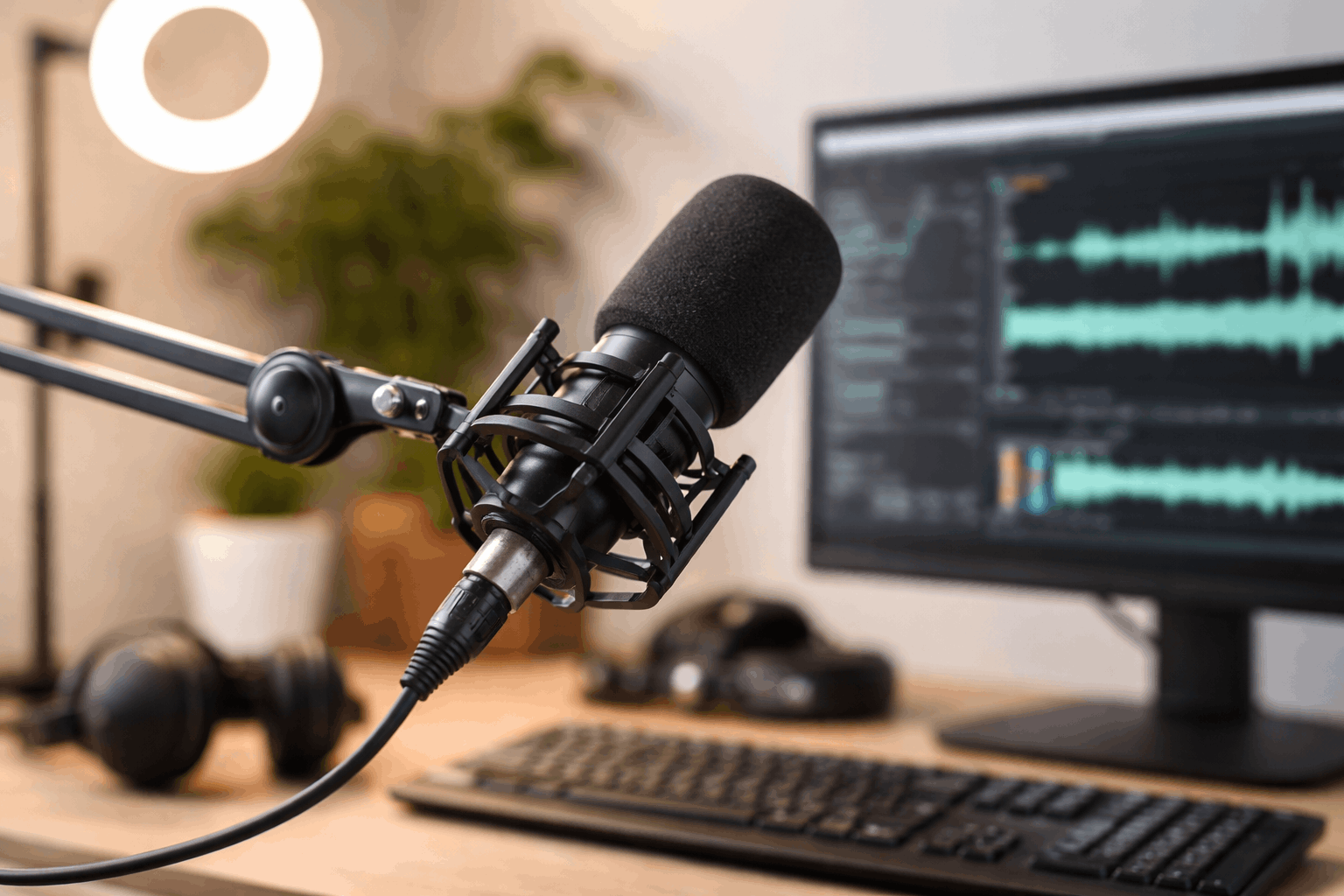
Step 1: Confirm the right microphone is selected
Many bad recordings happen because the wrong mic is active. Check your operating system input first, then check your recording app input.
If you use a USB mic, plug it directly into the computer when possible. Avoid unstable hubs, especially for long sessions.
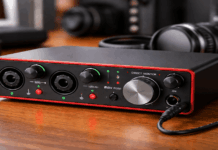
If you use an XLR mic, reseat the cable on both ends. Confirm your audio interface is the selected input device.
If you use a wireless lav, confirm transmitter and receiver are paired and locked. Check the camera or recorder input level so it is not clipping.
Step 2: Reduce noise sources before you test
A mic test works best when the room is predictable. Turn off fans, AC, and loud computers if you can. Close windows and doors.
Set your mic on a stable stand or boom arm. Do not hold the mic in your hand during the test. Handling noise can hide real problems and create new ones.
If you record video, set your tripod or webcam framing now.
Many creators move the mic to keep it out of frame and accidentally increase distance. That change alone can ruin the sound.
Step 3: Set safe recording levels
Microphone quality depends on proper levels. If you clip, the distortion stays forever. If you record too quietly, you will raise noise later.
Record a short sample while speaking at real volume. Watch the meter in your recording app.
Your normal speech should sit comfortably below the top, and louder words should not hit the red.
If the meter spikes hard, lower gain. If the waveform looks tiny and playback is weak, raise gain or move closer. .
Step 4: Record a short standard script
A standard script makes comparisons easy. It also reveals problems with “p” and “s” sounds. Keep it short so you do not waste time.
Say something like this: “Today I’m testing my microphone for clarity, noise, and tone. Peter Piper picked a peck of pickled peppers. She sells seashells by the seashore. One, two, three, four, five.”
Record it once at normal volume. Record it again slightly louder, like you are emphasizing a point.
The louder take is where clipping and harshness usually appear.
Step 5: Record 10 seconds of silence
Silence tells you what your mic and room sound like without speech. Record 10 seconds without moving. Then listen on headphones if possible.
If you hear steady hiss, you may be using too much gain or a noisy input. If you hear low hum, you may have power or grounding interference.
If you hear buzzing or whining, it may be a charger, LED power supply, or USB noise. If the noise is mostly room-related, move the mic closer.
That improves the voice-to-noise ratio quickly. If the noise sounds electrical, try a different USB port, unplug the laptop charger, or swap cables.
Step 6: Check plosives and sibilance
Plosives are the air blasts on “p” and “b.” Sibilance is the sharpness on “s” and “sh.” Both can make audio feel cheap and irritating.
To test plosives, say “pop,” “paper,” and “basketball” close to the mic. If you hear low thumps, use a pop filter or angle the mic slightly off-axis.
To test sibilance, repeat “she sells seashells” at normal volume. If “s” sounds piercing, try turning the mic slightly away from your mouth.
These changes are usually faster than fixing harshness later. They also keep your voice sounding natural.
Step 7: Test handling noise and vibration
Handling noise is common in home setups. Desk bumps, keyboard taps, and cable movement can travel into the mic.
During the test, tap your desk lightly and type a short sentence while staying quiet. Listen back and judge how loud those sounds are.
If desk noise is loud, isolate the mic. A shock mount can help. A boom arm can help. Moving the mic stand off the desk can also reduce vibration.
For lavaliers, handling noise often comes from clothing and cable rub. Move naturally during the test.
Step 8: Check room echo and distance problems
Room echo can make a mic sound “far away.” This is common in empty rooms, tiled floors, and bare walls.
If your voice sounds like it bounces around, the room is too reflective for that distance. The simplest fix is getting the mic closer.
Soft surfaces help fast. Curtains, rugs, and couches reduce reflections. Recording near a corner or bare wall often makes echo worse.
This is important for on-camera mics and shotguns. They are often placed farther away to stay out of frame.
Step 9: Do a short movement consistency test
Creators move while recording. You look at notes, glance at a monitor, or shift in your chair. A mic test should include that reality.
Record a short take while you turn your head slightly left and right. Then lean a few centimeters closer and farther.
Listen back for volume drops, tone changes, or dull moments. If your voice changes too much, adjust placement.
This is also where mic type matters. Some mics are forgiving. Others require tighter technique.
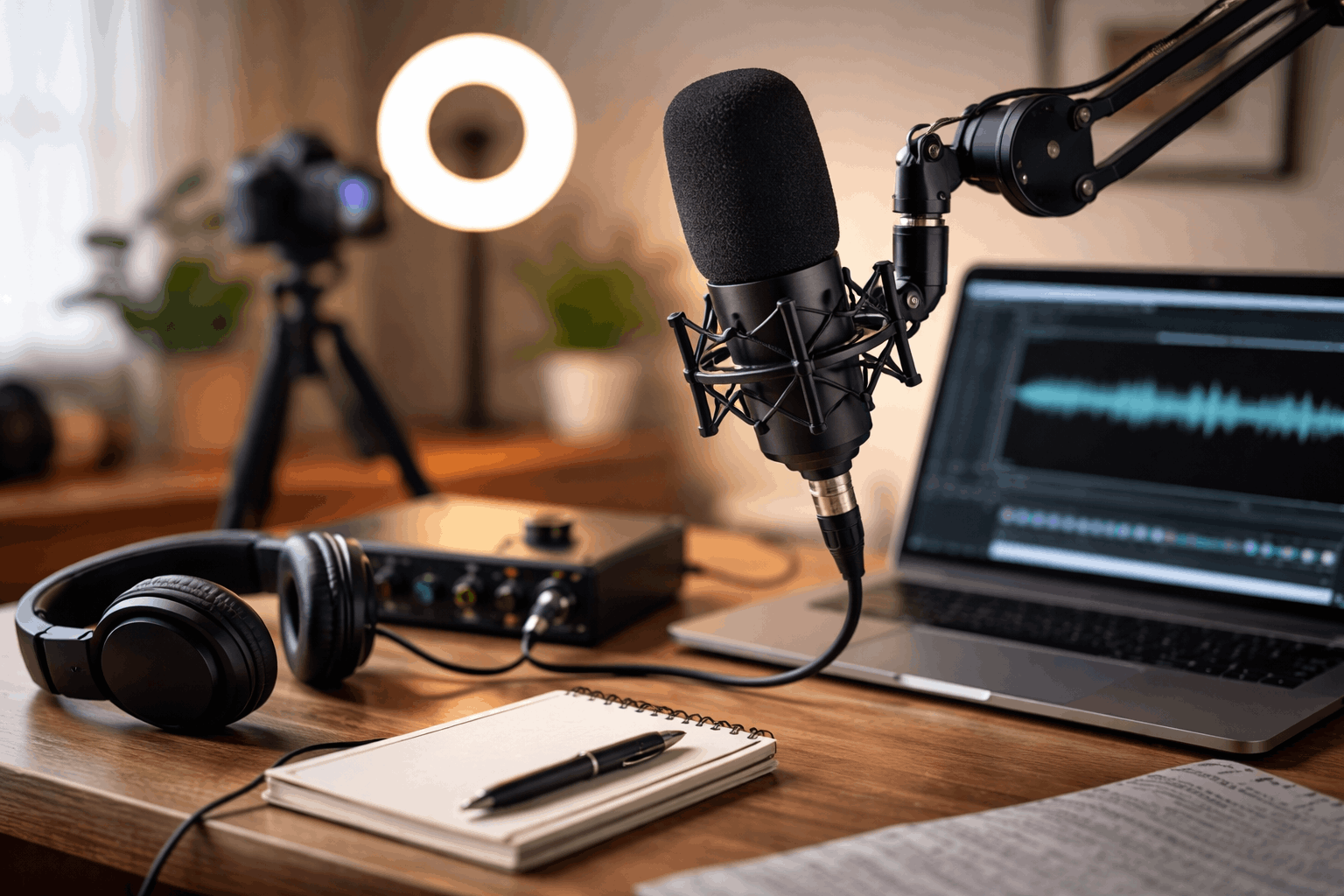
A fast pass/fail decision before you hit record
After your test, decide quickly. Ask three simple questions during playback.
- Is every word clear without strain?
- Is noise low enough that it will not distract after you normalize audio?
- Are there any take-killers like clipping, crackling, or heavy echo?
If the answers are good, start recording. If not, change one thing and retest. Avoid changing multiple variables at once.
In most home setups, the best first fix is moving the mic closer and lowering gain. It improves clarity and reduces noise at the same time.
Conclusion
Testing microphone quality is a short process that protects your entire recording workflow.
A clean test confirms your levels, exposes noise, and shows whether your room or mic technique needs adjustment.
When your audio is stable before you record, your edits are faster and your videos feel more professional from the first second.