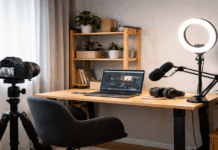
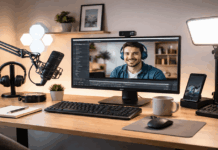
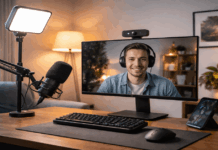
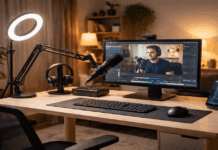
Cable clutter can make a simple creator desk feel stressful and hard to use.
Clean routing helps your microphone sound consistent and keeps your lighting and webcam gear ready at any moment.
A tidy setup also reduces accidental unplugging when you adjust a tripod, move a key light, or slide your keyboard.
Plan Your Cable Routes Before You Tie Anything Down
Start by listing every device that needs power or data, including your microphone, webcam, lights, chargers, and any small audio interface.
Place each item where you actually use it during recording, not where it looks best in a photo.
Trace the shortest “safe path” cables can follow to the back edge of your desk without crossing your mouse or camera framing area.
Decide where cables will drop off the desk, because one clean exit point is easier to manage than five messy ones.
Separate Power Lines From Audio and Video Lines
Keep power cables on one side and audio or USB cables on the other to reduce tangles and simplify troubleshooting.
Run your microphone cable and audio interface USB cable away from power bricks and extension cords whenever possible.
If they must cross, cross them once at a right angle so you avoid long parallel runs that invite noise and snagging.
Decide What Stays on the Desk Versus Off the Desk
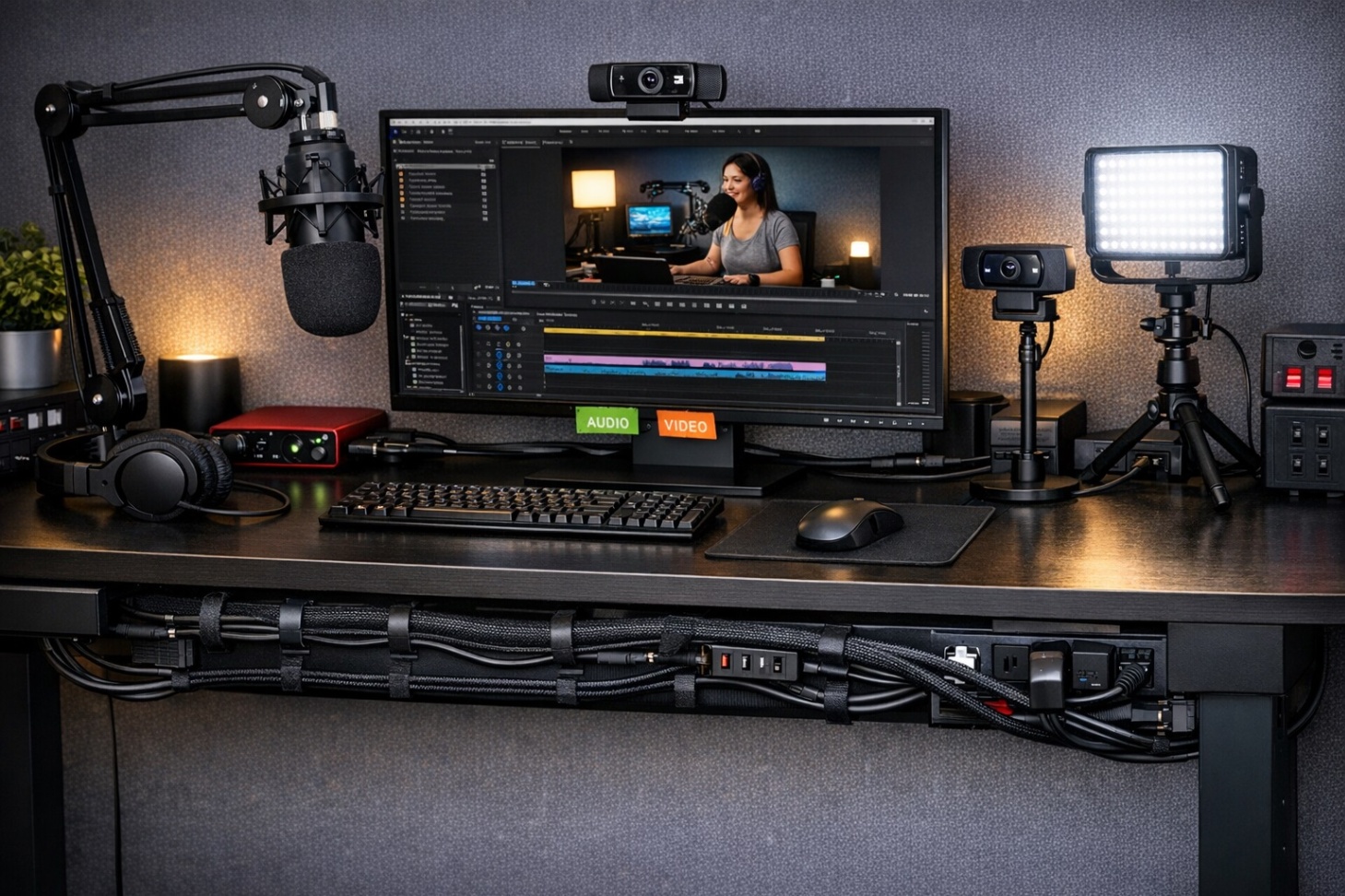
Leave only the cables you touch daily on top, like a headphone cable, a phone charger, or a quick USB connection for a webcam.
Move everything else below the desk, including power bricks for lights, spare HDMI, and long extension leads you rarely adjust.
A clean desk surface keeps your shot tidy and stops cables from sliding into frame when you reposition your tripod or key light.
Use Simple Cable Management Tools That Match Creator Gear
Choose tools that are easy to reopen, because creator setups change when you add a light, swap a mic, or move a camera angle.
Pick a small set of supplies and stick to them, because consistency makes your desk easier to reset after each session.
Aim for “secure but reversible,” so you can replace a cable without cutting, ripping, or rebuilding the whole route.
Keep a small cable kit in a drawer, because quick fixes are easier when the right clips and ties are within reach.
Reusable Fasteners for Daily Changes
Use Velcro straps instead of zip ties for anything you might re-route, like USB cables for webcams and power leads for lights.
Add adhesive cable clips along the back edge of the desk to guide cables into neat lanes without drilling or permanent mounts.
Use a few cable ties only for long-term bundles under the desk, and leave slack near devices so you can adjust positions safely.
Trays, Sleeves, and Channels for Clean Lines
A simple under-desk cable tray holds power bricks, extension boards, and excess slack so nothing hangs in your leg space.
A cable sleeve or braided wrap makes a group of wires look like one clean line going to a webcam or a light stand.
A desk grommet or small pass-through hole creates a neat exit point so cables drop down without rubbing the desk edge.
Organize Cables by Recording “Chains” Instead of by Length
Group cables by what they help you do, because “audio chain” and “video chain” are easier to maintain than random bundles.
When you troubleshoot, you want to isolate one chain fast, like mic issues versus webcam issues, without moving everything.
This approach also helps when you upgrade, since you can swap out one device without disrupting your entire desk.
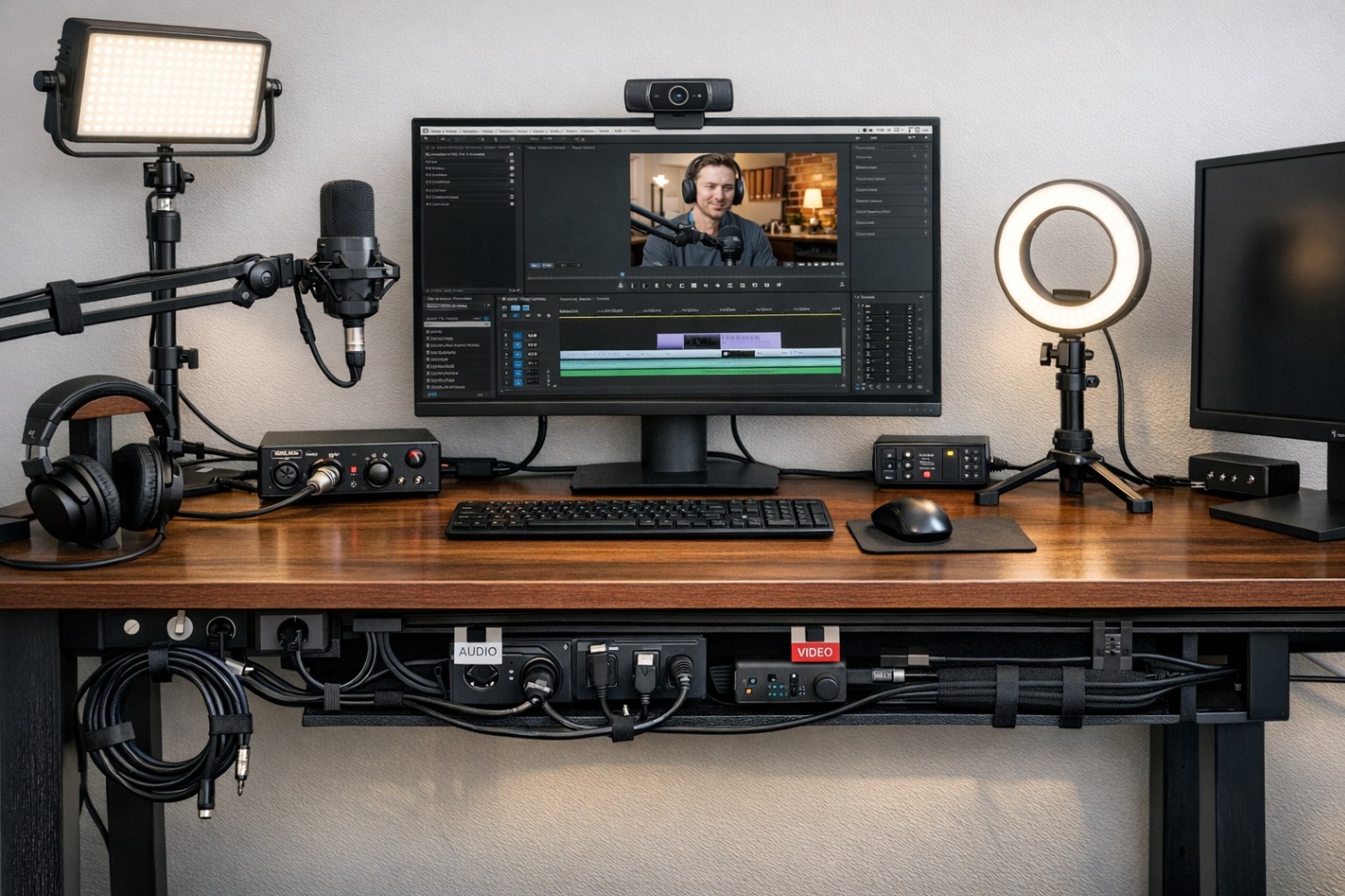
Once grouped, label each chain at the desk edge so you always know which bundle is which.
Audio Chain: Microphone, Interface, Headphones, and Monitoring
Run your microphone cable directly to the audio interface path, and keep that route as short and protected as you can.
Bundle the USB interface cable with the mic route only after you confirm noise-free recording, as some setups may react differently.
Leave a gentle loop of slack near the mic stand so you can pivot the mic for speaking or singing without yanking the connector.
Video Chain: Webcam, Capture, Monitor, and Lighting Control
Treat your webcam USB cable like a “camera line” and keep it separate from power bricks for LED lights when possible.
If you use a small capture device, keep HDMI and USB together in a sleeve so your desk looks clean and the plugs stay supported.
Route light power cables down the back of each stand or mini tripod so they never drape across your desk surface or your shot.
Manage Power Safely and Reduce Buzz in Recordings
Power is where most clutter starts, because lights, chargers, and adapters quickly multiply around a creator desk.
Choose one power hub location under the desk so every device “returns” to the same center point.
Keep a little slack and strain relief near plugs, because tight bends can wear cables and cause random disconnects.
A clean power layout also helps your audio, because messy power bricks near your interface can introduce hum or interference.
Place Power Bricks and Adapters in One Contained Zone
Mount a power strip under the desk or inside a tray so cords do not hang and get kicked during recording.
Group power bricks together with Velcro and leave airflow space, because some adapters get warm during long sessions.
Use a short extension lead for a single big power brick if it blocks other outlets, because that prevents the “adapter pile” problem.
Reduce Electrical Noise With Smart Cable Placement
Keep your audio interface and microphone cable away from power supplies for bright LED panels or ring lights when you can.
If you hear buzzing, test by moving the interface USB cable away from power bundles before you change settings or buy new gear.
Use balanced connections where your gear supports them, but still prioritize good routing because cable layout often solves simple noise issues.
Make Your Setup Easy to Reset, Upgrade, and Pack Away
A creator desk works best when it is easy to break down for cleaning, travel, or switching from recording to editing.
Build in “quick disconnects” so you can move a tripod, remove a webcam, or shift a key light without unthreading knots.
Labeling is the difference between a tidy setup and a confusing one, especially when you add one more accessory next month.
Finish by doing one full practice reset, because a system is only good if you can rebuild it without thinking.
Conclusion
A clean creator desk starts with clear routes, simple tools, and cable groups that match your mic, webcam, and lighting workflow.
When power and data lines are separated and labeled, you spend less time fixing tangles and more time recording.
Keep your setup easy to reset with quick-release routing, a single cable exit point, and a small drawer kit for changes.