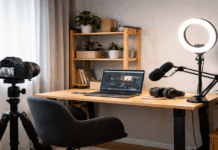
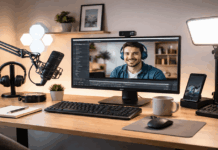
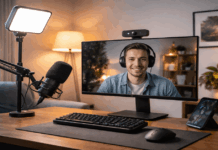
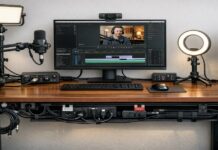
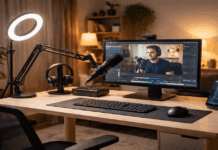
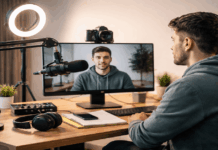
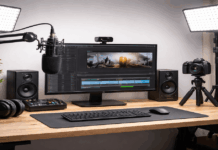
A home studio for voice and video is a small, repeatable setup that helps you record clean sound and a clear image.
You do not need an expensive room to start, but you do need to plan the space, the audio chain, and the camera and light placement.
Choose the Right Spot in Your Home
The best “studio” is usually a quiet corner you can control every day. A space that is predictable will save you more time than buying extra gear.
Start by listening for problems at different times of day. Traffic, neighbors, fans, and even a loud refrigerator can show up on recordings.
What to look for in a good space
A room with a door you can close and soft surfaces (curtains, rug, couch) and minimal street-facing windows and fewer hard, empty walls.
Enough room to keep your microphone 15–25 cm from your mouth and your camera at eye level.
Power outlets that do not require long extension cords crossing walking paths.
Control Echo Before You Buy Anything
Many recordings sound “cheap” because of the echo, not because of the microphone.
Echo happens when your voice bounces off bare walls and returns to the mic slightly delayed.
You can improve the sound using household items first. The goal is not silence, but reducing reflections near your mic.
Quick ways to reduce echo
Record in front of a curtain, bookshelf, or open closet full of clothes.
Place a rug or thick blanket under your chair and desk, and add soft items behind the camera (pillows, folded towels, fabric wall hangings).
If you later want upgrades, acoustic panels can help, but they work best when placed near where your voice reflects first.
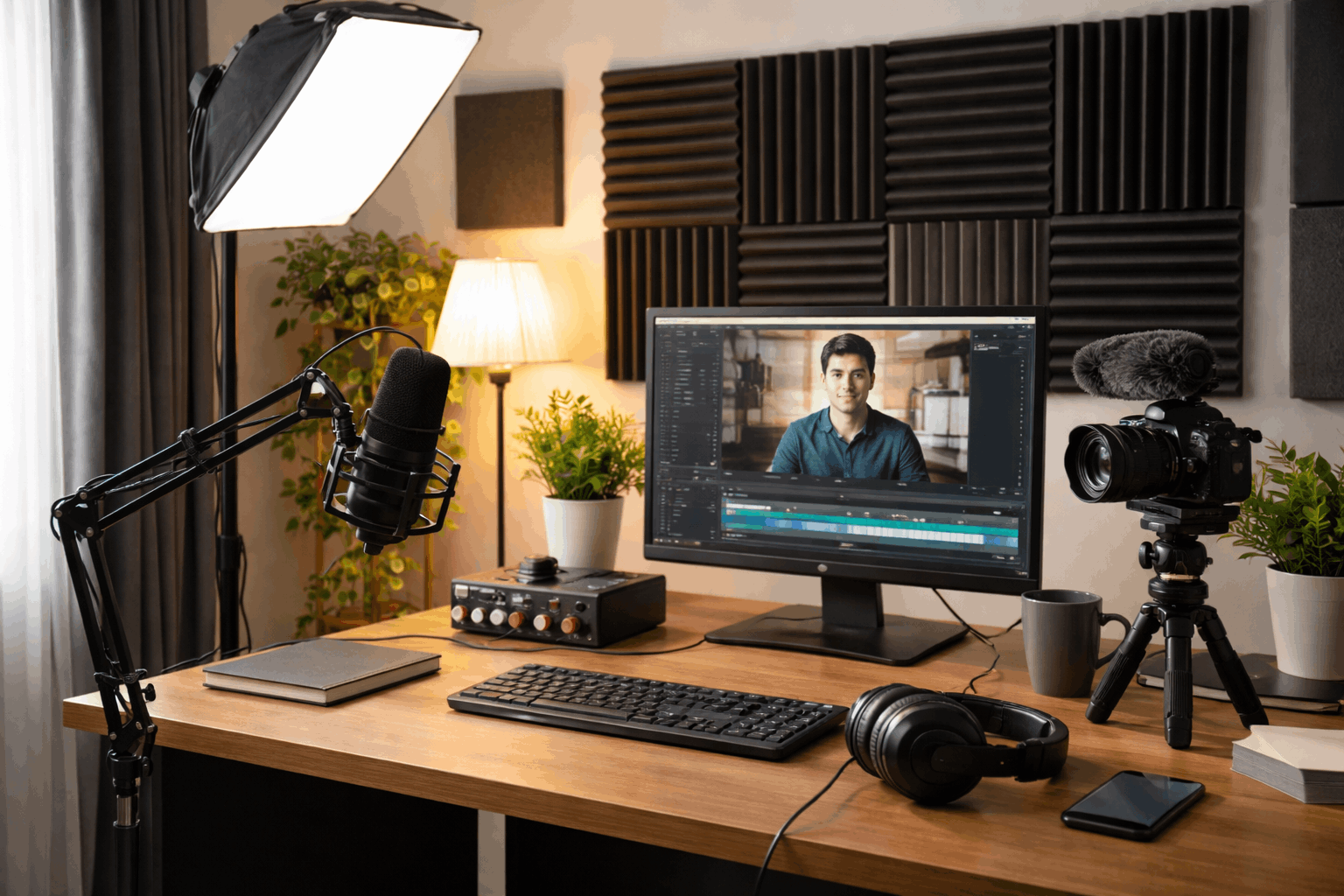
Get the Audio Right First
Viewers forgive average video faster than they forgive bad audio.
A clear voice track makes your content easier to understand and makes you sound more professional right away.
Microphone Options That Work
You can record good audio with either a USB mic or an XLR mic with an audio interface.
USB is simpler and often enough for beginners, while XLR is more flexible if you plan to upgrade later.
Common microphone types
- Dynamic mic: Better at rejecting room noise and echo, good for untreated rooms
- Condenser mic: More detailed, but can capture more room sound and background noise
- Lavalier (lapel) mic: Useful for talking-head video when you move around
- Shotgun mic: Good when placed close, but not a magic fix for noisy rooms
If your room is not treated, a dynamic mic is often the safer choice.
Mic Placement and Technique
Placement matters more than brand. Keep the mic close, aim it correctly, and stay consistent.
Keep the mic about 15–25 cm from your mouth and aim it slightly off-center (not directly in front of the breath stream).
Use a pop filter or foam windscreen to reduce “P” and “B” bursts to keep your speaking position steady so volume does not jump.
A stable mic stand, or boom arm, reduces desk vibrations. If you type or tap the table, a shock mount can also help.
Fix Background Noise at the Source
Noise control is easier than noise removal. Editing tools can help, but they cannot restore detail that was never recorded cleanly.
Turn off fans, AC vents aimed at the mic, and buzzing lights. Move your setup away from computers with loud cooling
Silence phone notifications and vibrating devices. Use soft cable management to prevent wires from rubbing on the desk
If your computer is noisy, try placing it farther away and using a longer USB cable or using a quieter laptop setup for recording.
Plan Your Camera Setup for Eye-Level Framing
A clear video image starts with the camera position. Place the camera at eye level so your posture looks natural and your face stays centered.
Your phone can work as a camera if it shoots in a stable, sharp mode.
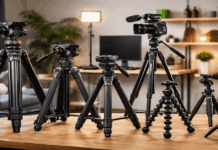
A basic tripod and a fixed position will help your framing look consistent across different sessions.
Framing basics
Eye-level camera, not looking up from the desk. A little headroom (space above your head), not too much
Your face should take up a meaningful part of the frame for talking videos. Keep the background simple and not distracting.
If you use a webcam, choose one that handles indoor light well and does not over-sharpen your face.
Lighting That Looks Natural on Video
Lighting is usually the biggest difference between “home video” and a clean studio look.
You do not need a complicated setup, but you need predictable light on your face.
The Easiest Lighting Setup
One soft key light placed slightly above eye level and angled about 30–45 degrees from the side is a strong starting point.
If one side of your face is too dark, you can add a reflector (white foam board) or a small fill light.
Lighting tips that work
Avoid bright windows behind you (they can make your face look darker). Use a soft light source instead of a harsh overhead bulb.
Keep lighting consistent across recordings so colors and exposure match. If you wear glasses, raise the light slightly and angle it to reduce glare.
A ring light can work, but it can create circular reflections in the eyes and glasses. A softbox or diffused LED panel often looks more natural.
Keep Your Workflow Organized
A home studio works best when it is easy to repeat. A consistent workflow reduces mistakes and speeds up editing.
Basic workflow checklist
- Test record 10–15 seconds before every session
- Check audio levels so your voice does not clip (distort)
- Confirm camera framing and focus
- Record a few seconds of room tone for editing cuts
- Back up files to a second location after recording
Naming files by date and topic makes it easier to find old clips.
A simple folder structure like “Project > Date > Audio/Video/Exports” keeps your work clean.
Editing and Export Settings That Stay Reliable
You do not need advanced editing to start, but you should use stable settings. For voice, clean edits and consistent loudness are more important.
Use light noise reduction only if needed, cut long pauses and repeated phrases, and add gentle EQ to reduce muddiness if your voice sounds “boxy”.
Use compression carefully to keep volume steady without sounding crushed
For video, export at a common resolution and frame rate your camera supports well. Consistency helps your uploads look uniform.
Final Safety and Comfort Notes
A good home studio should also be comfortable. Long recording sessions can strain your voice and posture if your setup is awkward.
Keep water nearby, sit with a neutral posture, and take short breaks if you record for long periods.
If you are under 18, it also helps to record in shared, safe spaces at home when possible and avoid sharing personal location details in your background or on-screen.
Conclusion
A home studio for voice and video is built from three priorities: quiet space, clear audio, and stable lighting.
Start by improving the room and your mic placement, because those changes often beat buying new gear.
Once your setup is consistent, your recordings will sound and look better with less editing and less stress.