Home audio can sound clean and professional without a studio, but small setup mistakes can make recordings feel “cheap” fast.
Every day creators often focus on cameras, lighting, or editing, then realize the audio is full of echo, noise, or uneven volume.
Most of those problems come from a few repeatable issues: room sound, microphone placement, levels, and how your gear is mounted and powered.
1) Recording in an echoey room and blaming the microphone
You record in a bare room with hard walls, tile floors, or big windows, then wonder why the voice sounds distant and “bathroom-like.”
Even a great mic will capture reflections, and the closer your mic is to the sound source, the less the room dominates.
How to fix it
Move closer to the mic (usually 6–10 inches for most voice setups) and reduce your input gain.
Soften the space with what you already have: curtains, rugs, couch cushions, and a thick blanket behind or beside you.
Treat the first reflection points: the wall behind your mic and the wall behind your head matter more than the rest of the room.
If you record at a desk, try positioning yourself so your voice projects into a soft background (curtains or bookshelf) rather than a flat wall.
2) Using the wrong microphone type for the job
A mic that is fine for one situation can be frustrating in another.
USB mics can pick up room noise if you sit far away, and some shotgun mics perform poorly indoors because they still capture reflections.
How to fix it
For talking-head videos at a desk, a dynamic microphone can reduce room sound compared with many condensers, especially if you can keep it close.
For standing or moving, use a lavalier mic (wired or wireless) placed correctly on your clothing.
For overhead or off-camera placement, use a shotgun mic only if you can aim it precisely and the room is controlled. Indoors, distance is the enemy.
3) Placing the mic too far away
The mic sits out of frame, far from your mouth, so you raise the gain to compensate. That increases room echo, computer fan noise, and hiss.
How to fix it
Get the mic as close as you can without ruining the shot. A small boom arm or compact stand helps.
Aim the mic at your mouth, not your chest. Even small angle changes can improve clarity.
If you must keep the mic farther away, consider a lavalier or reposition the camera framing so the mic can be closer.
4) Ignoring plosives, sibilance, and breath noise
“P” and “B” sounds hit the mic capsule, causing low-frequency blasts. “S” sounds can become harsh, especially on bright condensers.
How to fix it
Use a pop filter for most vocal recordings, especially on condenser mics.
Position the mic slightly off-axis (angled a few degrees to the side) so airflow doesn’t hit it directly.
In editing, use a de-esser gently if needed, but solve the biggest issues with placement first.
5) Bad gain staging and clipping
Your audio meters hit red, your waveform looks “brick-like,” and the distortion can’t be fully repaired.
Another version of the same problem is recording too quietly, then boosting later and adding noise.
How to fix it
Set your levels so normal speech peaks around -12 dB to -6 dB in your recording software.
If your mic or interface has a gain knob, adjust it while speaking at real volume.
Turn off “auto gain” features when possible, especially on webcams and some USB mics, because they pump the noise floor up and down.
6) Not monitoring audio while recording
You record a full take and discover later that your mic wasn’t selected, the cable was loose, or the audio was distorted.
How to fix it
Use closed-back headphones while setting levels and during the first minute of recording.
If possible, enable direct monitoring on your audio interface to avoid latency.
Confirm you’re recording the correct input (USB mic, interface channel, or lav receiver) before every session.
7) Handling noise and vibrations from stands, desks, and tripods
Desk taps, keyboard typing, and even small camera movements travel into the mic through the stand or boom arm.
Tripods can transmit floor vibrations, and a mic mounted directly on a hard surface can pick up low rumbles.
How to fix it
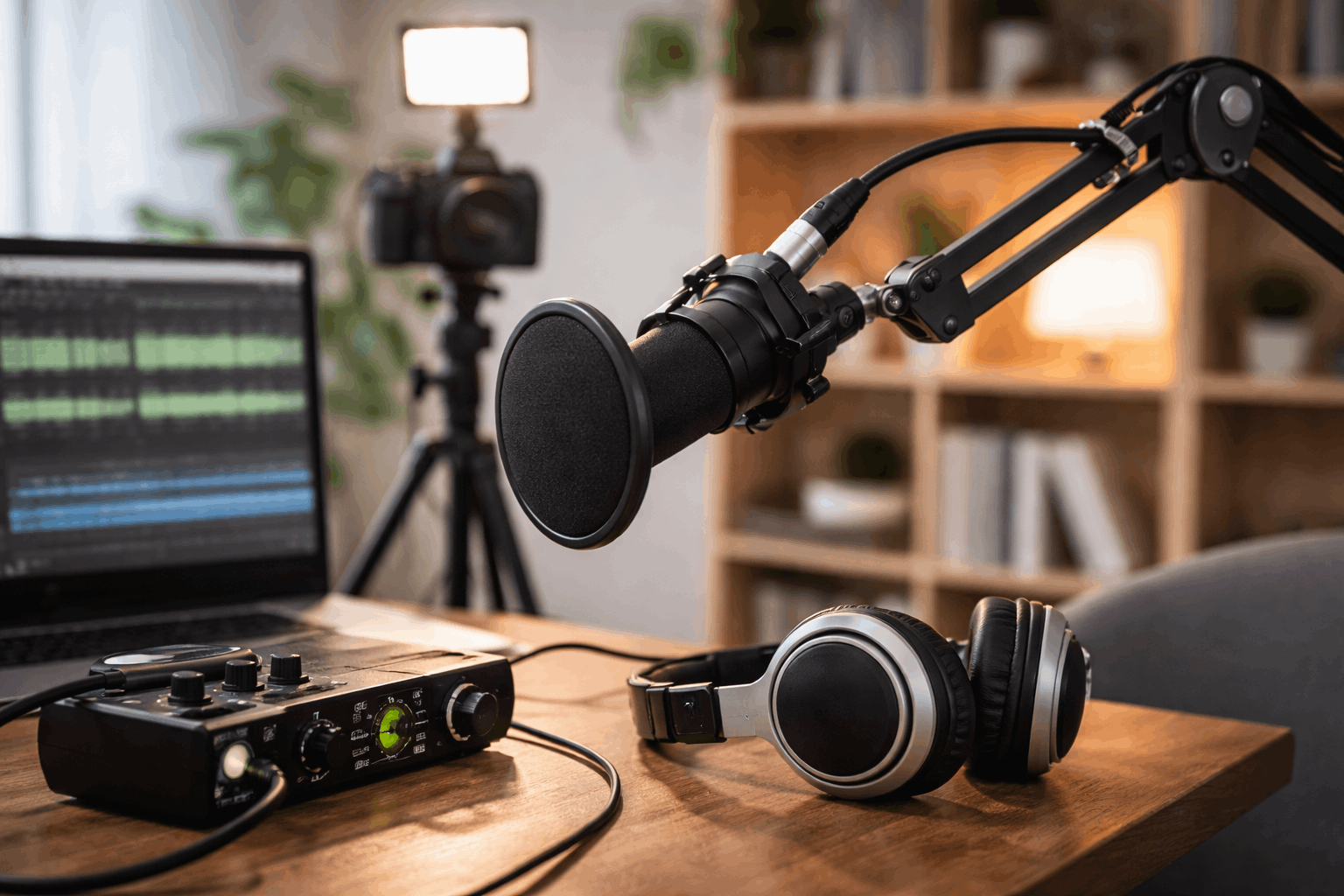
Use a shock mount for microphones that support it. Move the mic off the desk with a boom arm or separate stand.
Put the tripod and mic stand on a rug or foam pad if you have a hard floor.
Avoid touching the desk during recording and keep cables from pulling on the mic.
8) Letting fans, lights, and electronics ruin clean audio
Computer fans, air conditioners, and even certain LED lights add constant noise.
Some power adapters and cheap cables can introduce hum or interference.
How to fix it
Place noisy devices farther away and aim directional mics away from them.
Use quieter lighting when possible and keep lights from blasting heat at your face (which can push you closer to noisy fans).
If you hear a hum, try plugging everything into the same power strip, swapping to a different USB port, or using shorter, higher-quality cables.
9) Mixing sample rates and creating sync problems
Your webcam, screen recorder, and audio interface run at different sample rates, causing drift over time.
How to fix it
Standardize your project to 48 kHz for video work (common in video workflows).
Set your audio device and recording software to the same rate before recording.
If you record separate audio and video, clap once at the start for easy alignment.
10) Overusing noise reduction and “fixing” audio into something unnatural
Heavy noise reduction removes hiss but also removes clarity, making your voice sound watery or robotic.
How to fix it
Reduce noise at the source: closer mic placement, quieter room, better gain staging.
Use noise reduction lightly, then add a subtle EQ for intelligibility rather than trying to erase every background sound.
A small amount of room tone is often less distracting than aggressive processing artifacts.
Conclusion
Most home audio problems come from a handful of setup habits, not from having the “wrong” gear.
A close, well-placed microphone in a controlled space will usually beat an expensive mic used at a distance in a noisy room.
When you fix room sound, levels, and mounting stability, your videos immediately feel more professional, even with a simple creator setup.