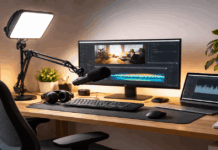
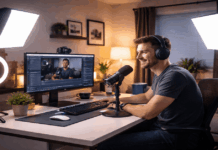
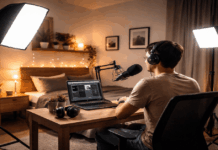
Overexposed video happens when your camera captures more light than it can record, turning bright areas into flat white patches with no detail.
With a simple setup and a few repeatable checks, you can keep skin tones natural, backgrounds readable, and your image consistent from clip to clip.
What overexposure looks like and why it happens
Overexposure is when highlights “clip,” so bright parts of the frame lose texture and turn into solid white.
It usually comes from auto-exposure reacting to a bright window, a shiny desk, or a strong light aimed too close to your face.
Webcams are especially prone to this because their small sensors and aggressive auto settings prioritize a bright image over preserved detail.
The fix is always the same idea: reduce the light hitting the sensor or tell the camera to expose darker on purpose.
Fast signs you are clipping highlights
If your forehead, cheeks, or nose look like they glow and the texture disappears, you are likely clipping highlights.
If a white wall or window becomes a bright blank shape with no edges or curtain detail, the camera is overexposing.
If your brightness “pumps” up and down while you move, auto-exposure is chasing the scene and frequently overshooting.
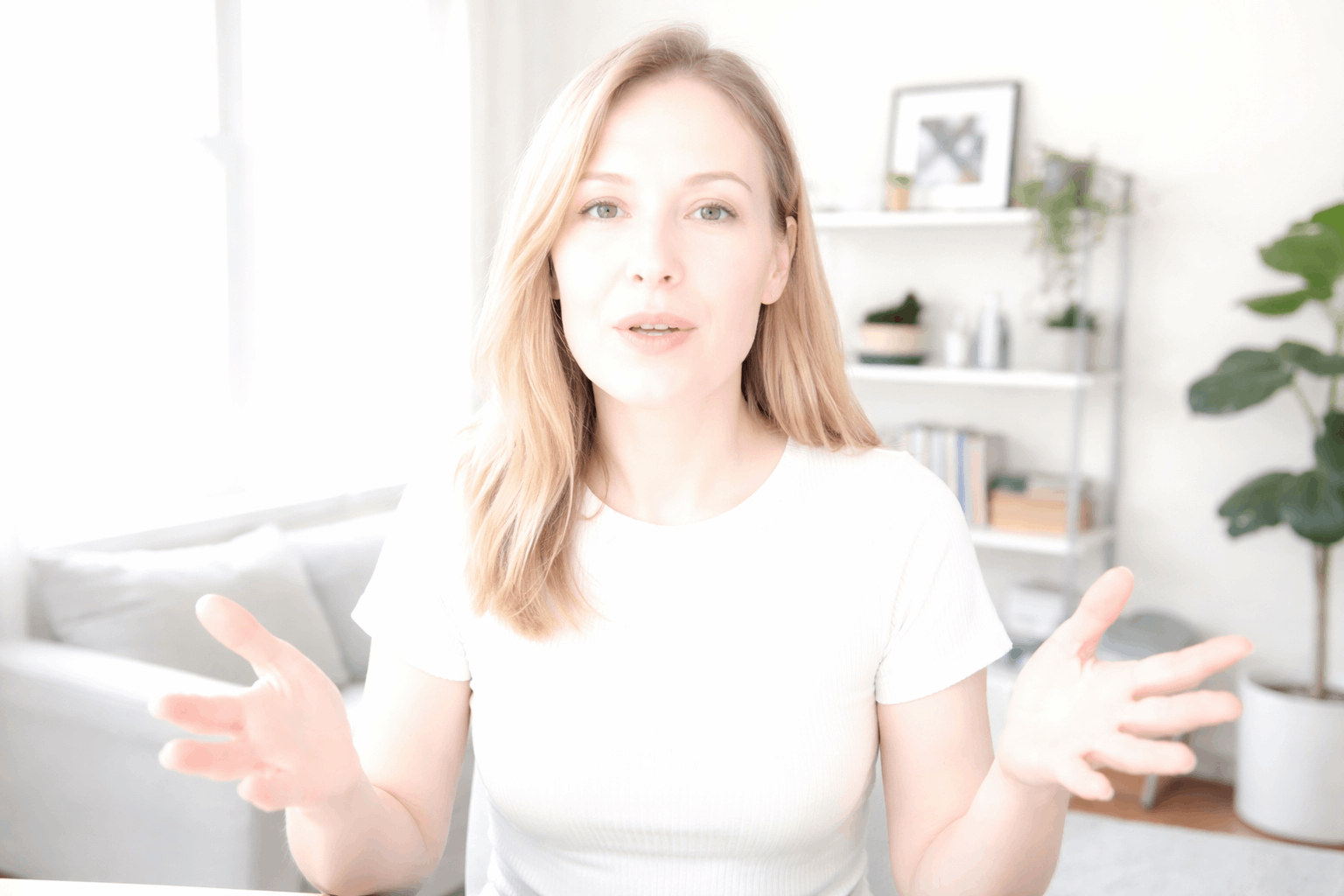
Take control of exposure on your webcam or camera
Auto mode is designed for average scenes, so it often fails in home setups where backgrounds and lighting are uneven.
Your best upgrade is not a new camera, but a stable exposure choice you can repeat every time you record.
Start by locking exposure if your app allows it, because a locked exposure prevents sudden brightness jumps mid-sentence.
If you cannot lock exposure, use exposure compensation to force the camera to stay slightly darker than it wants.
Webcams and exposure compensation that actually helps
Most webcam software includes a brightness slider, but you want an exposure or “EV” control if it is available.
Dial exposure compensation down in small steps until your skin keeps detail, even if the overall image looks slightly darker at first.
Once highlights stop clipping, you can brighten the scene with lighting placement instead of letting the camera over-brighten everything.
ISO, shutter, and aperture in simple home terms
ISO is digital gain, so higher ISO makes the image brighter but also noisier and easier to blow out in highlights.
Shutter speed controls how long each frame collects light, so slower shutter looks brighter but can add motion blur when you gesture.
Aperture affects brightness and depth of field, but many webcams have fixed aperture, so light placement matters more than lens settings.
Fix lighting intensity and placement instead of “cranking brightness”
Overexposure is often a lighting problem, not a camera problem, because the light is too strong or too direct.
A bright light close to your face creates hot spots on skin that clip even when the rest of the room looks fine.
You get better results by moving lights back, softening them, and aiming them deliberately rather than adding more power.
Treat lighting like a dial you control, so the camera can stay stable and your look stays consistent.
Key light distance, angle, and diffusion
Move your key light farther away and raise it slightly above eye level to reduce shiny hotspots on cheeks and forehead.
Aim the light from the side so it shapes your face without blasting straight into the lens.
Add diffusion with a softbox, umbrella, or a simple white diffusion panel so the light spreads and highlights roll off more gently.
Color temperature and mixed light problems
Mixed lighting from daylight plus warm lamps can trick auto-exposure and auto-white-balance into unstable decisions.
Pick one main color temperature, like daylight-balanced LEDs for a clean look, and turn off competing room lights if you can.
If daylight changes through the day, block the window or make your artificial lights strong enough to dominate the scene.
Control backgrounds, bright windows, and reflective surfaces
Your subject can be perfectly lit and still look overexposed if the camera is reacting to a bright background.
The camera often tries to “average” the whole frame, so a window forces it to blow out your face or wash out your wall.
Start by reducing the brightest objects in the frame, because that gives auto-exposure less reason to overcorrect.
A simple background plan also makes your video look cleaner, more professional, and easier to watch.
Windows, daylight swings, and quick fixes
Move your desk so the window is not directly behind you in the frame.
If you want daylight as your key light, face the window and place the camera between you and the window for softer exposure.
When daylight changes fast, choose artificial lighting plus a blocked window so your exposure does not drift between takes.
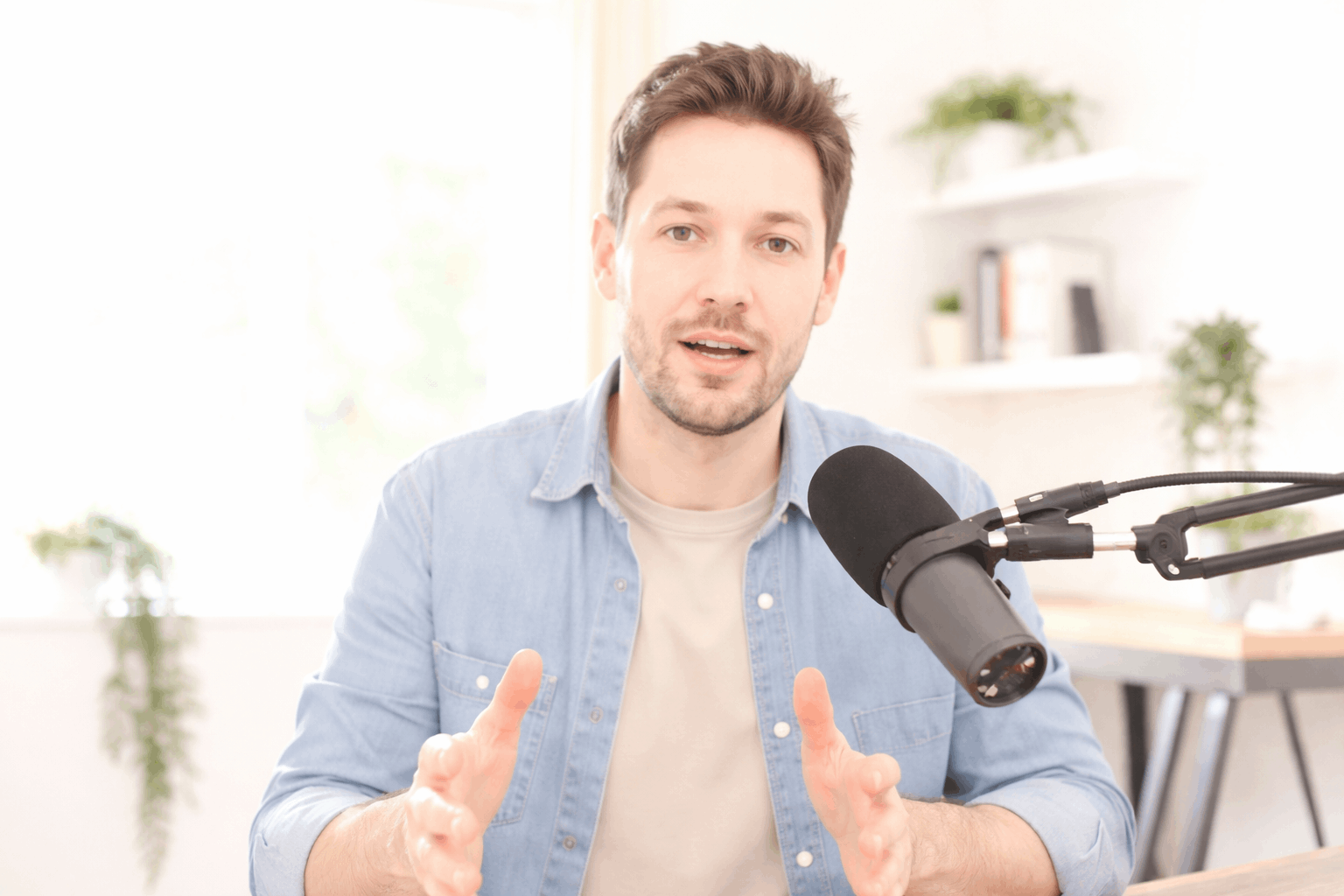
Build a repeatable setup that stays consistent for everyday creators
Consistency is easier than perfection, because a setup that never changes lets you reuse the same camera and light settings.
Keep your light positions marked with tape or placed on fixed stands so you can rebuild the same look in minutes.
Good audio gear also helps you avoid overexposure because it lets you place lights farther away without worrying about noise.
Tripods, framing, and keeping exposure from “hunting”
Frame with a little headroom and avoid placing a bright lamp or window at the edge of the shot where the camera keeps reacting.
Set your tripod height so the lens is near eye level, because extreme angles catch ceiling lights and shiny surfaces more easily.
Once your framing is stable, lock exposure or set compensation again, because even small reframes can change what the camera “sees.”
Conclusion
Overexposed home video is usually the result of auto settings reacting to bright backgrounds or lights that are too close and too direct.
A repeatable setup with fixed framing, consistent lighting, and a reliable microphone keeps your image stable and reduces exposure “hunting” across takes.