If your home recordings sound too quiet, too noisy, or suddenly distort, the problem is often gain.
Gain is one of the most important settings in any simple creator setup.
Once you understand what gain does and how to set it, your voice can sound clearer, cleaner, and more consistent—without expensive upgrades.
What “Gain” Actually Means
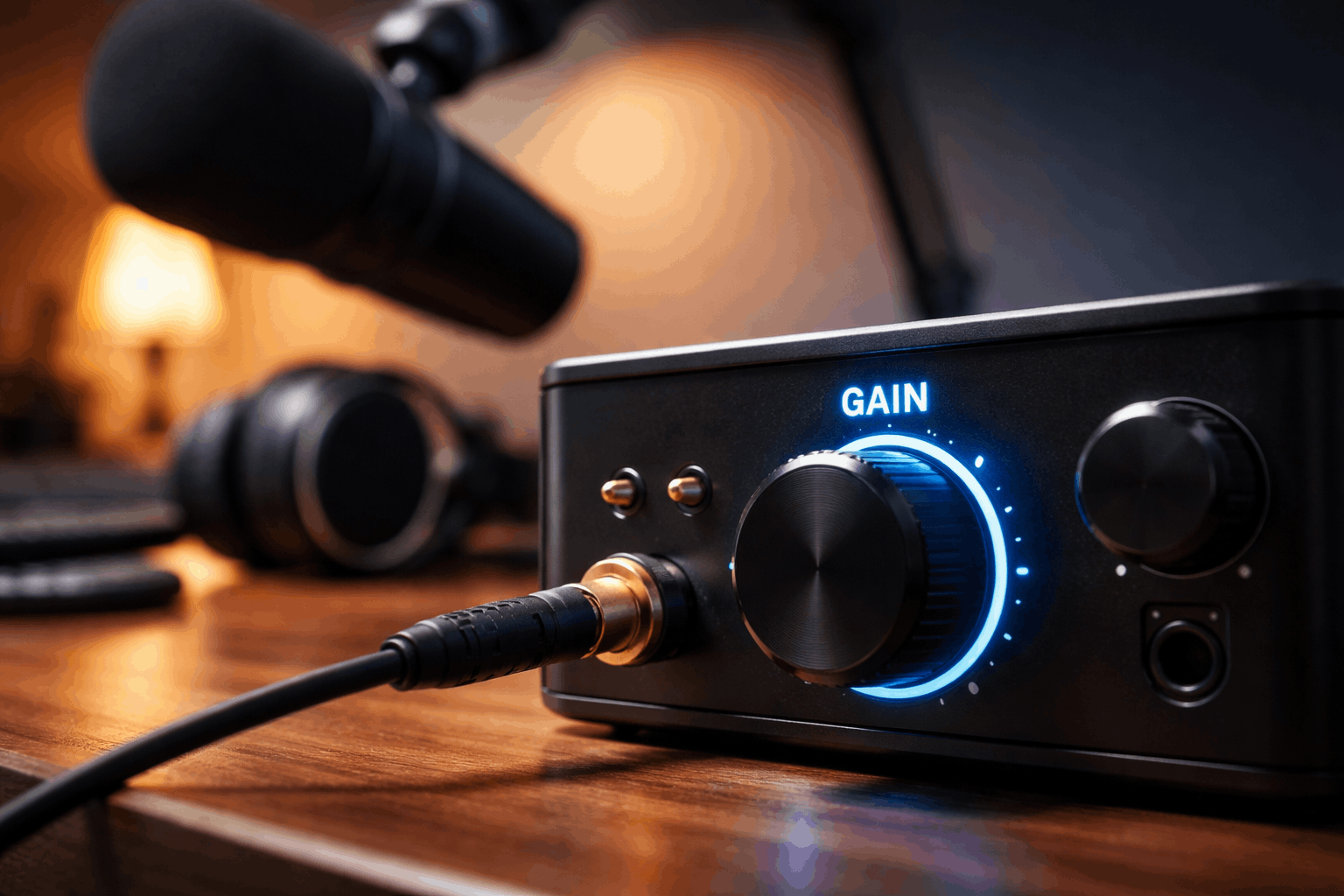
Gain is how much your gear amplifies the microphone’s signal at the start of the audio chain. Think of it as the “input strength” control.
Your microphone produces a very small electrical signal, and a preamp boosts that signal to a usable level.
Gain is not the same as volume. Volume usually refers to what you hear on speakers or headphones, or how loud the final exported file sounds.
Gain is about capturing a healthy signal before it gets recorded.
Gain vs. Volume vs. Fader (Quick Comparison)
Gain (input level): sets how strong the mic signal is going into your recorder or computer.
Fader/slider (mix level): adjusts how loud the track is in a mix (for example in OBS or a DAW).
Output volume (monitor level): adjusts how loud you hear things in headphones/speakers.
If gain is wrong at the start, the rest of your settings become harder to fix later.
Why Gain Matters for Home Creators
Home setups often deal with real-world problems: loud keyboards, air conditioners, echo, street noise, and unpredictable speaking distance.
Correct gain helps you:
- Avoid clipping (harsh distortion when audio is too hot).
- Reduce hiss and background noise caused by boosting weak audio later.
- Keep consistent levels when you edit video, record voiceovers, or livestream.
Gain is especially important with common creator gear like shotgun mics, wireless lav mics, USB desk mics, and compact audio interfaces.
The Basic Goal: Strong Signal, No Distortion
When you set gain, you want a signal that is strong enough to be clean, but not so strong that it distorts.
In digital recording, distortion happens when the signal hits the maximum level the system can store (0 dBFS).
That’s called clipping, and it can ruin an otherwise good take.
A safe and common target for voice recordings
Average speaking of around -18 to -12 dBFS, louder peaks around -12 to -6 dBFS, and avoid hitting 0 dBFS at all costs.
These aren’t “magic numbers,” but they’re reliable starting points for spoken voice in home studios.
Analog Gain and Digital Gain: What’s the Difference?
Most home setups involve two kinds of gain:
1) Analog gain (preamp gain)
This is the gain knob on an audio interface, mixer, wireless receiver, or inside a USB mic.
It boosts the signal before it becomes digital. Good analog gain is the foundation of clean audio.
2) Digital gain (software gain)
This is the level you raise in software—like your operating system input slider, OBS filters, or DAW plugins.
Digital gain can help fine-tune, but if you rely on it too much, you may also raise noise.
Best practice: get the signal healthy using analog gain first, then make small adjustments in software.
How to Set Gain Step by Step (Works for Most Setups)
Step 1: Use your real speaking voice
Set gain while speaking the way you will record—same distance, same energy, same mic position.
9If you whisper during setup and then speak loudly during the recording, your levels will be wrong.
Step 2: Position the mic correctly
Before touching gain, fix placement. Distance changes your level dramatically.
Good placement reduces the need for extreme gain, which also reduces noise.
- Dynamic mic (often used close-up): usually 5–10 cm from your mouth.
- Condenser mic (more sensitive): often 10–20 cm away.
- Shotgun mic (camera/top-down): keep it aimed at your mouth and as close as your framing allows.
Step 3: Raise gain until your peaks land in a safe zone
Watch the meter while you speak at your loudest expected level. Raise gain until your peaks are roughly -12 to -6 dBFS.
If you see red meters or clipping warnings, back off.
Step 4: Monitor with headphones
Use closed-back headphones if possible.
Listen for harsh crackling on loud words (clipping), constant hiss (gain too high or noisy room), thin sound (mic too far away), and echo.
Step 5: Record a short test and play it back
Do a 10–20 second test clip and listen on both headphones and normal speakers. You’re checking for clarity, not just loudness.
Common Gain Mistakes (And Quick Fixes)
Mistake 1: Gain too low, then “fixing it in editing”
If your recorded voice is very quiet, raising it later can boost room noise and hiss. Fix: increase gain at the preamp and move the mic closer.
Mistake 2: Gain too high, causing clipping
If your waveforms look “flat-topped” or the meter hits red, you clipped.
Fix: lower gain, speak slightly off-axis (not directly into the capsule), and consider a pad if your gear has one.
Mistake 3: Confusing gain with software sliders
Some creators leave the interface gain low but crank the computer input level. That often increases noise.
Fix: set a solid level at the interface/mic first.
Mistake 4: Automatic Gain Control (AGC) fighting your audio
Many webcams, phones, and some apps enable AGC (automatic gain control). It can pump your noise up and down and make audio sound unnatural.
Fix: disable AGC if your software allows it (common in conferencing apps and camera menus).
Gain Tips by Gear Type
USB Microphones
USB mics often have a gain knob or input level control.
Start with your computer’s input around a normal baseline (not maxed), then adjust the mic’s gain for proper peaks.
If your USB mic also has a headphone knob, remember that’s usually monitor volume, not recording gain.
XLR Mic + Audio Interface
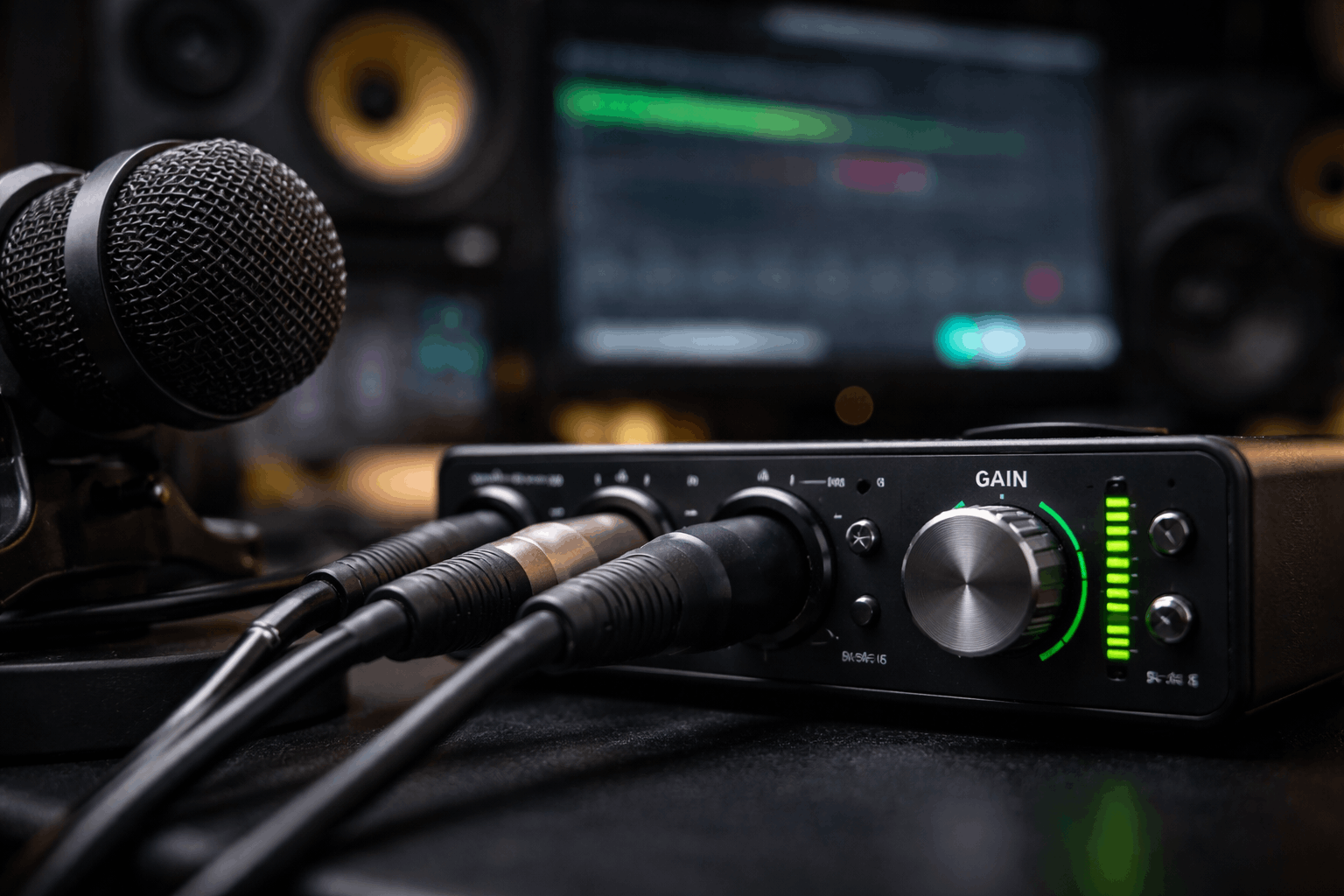
Use the interface gain knob as your primary control.
If your mic needs more gain than your interface can cleanly provide, you may hear hiss at higher settings.
In that case, improving placement and room noise matters more than pushing the knob to the max.
Wireless Lav Mics
Wireless systems usually have output level controls on the receiver and sometimes sensitivity on the transmitter.
If you overload the transmitter, you’ll get distortion even if your camera meter looks fine.
Set the transmitter so it doesn’t clip, then adjust receiver output to match your recording device.
Recording Into a Camera
Camera preamps can be noisier than audio interfaces.
A good approach is to send a strong, clean signal from your mic system and keep the camera’s input gain lower.
Always test because every camera behaves differently.
Conclusion: Set Gain Once, Improve Every Recording
Audio gain is the control that decides whether your microphone signal is clean or troublesome before editing even begins.
When you aim for healthy levels, avoid clipping, and keep your mic placement consistent, your recordings get clearer without complicated tools.
This is true for USB mics, XLR interfaces, lav systems, and camera inputs used in everyday creator setups.